


GPS Camera with Time Stamp
3.4236.00 Reviews
App Specs
- Version
- 4.8.0
- Updated On
- License
- Free
- Downloads
- 5,000,000+
- Developer
- Wanda Gallery Studio
- Categories
- Tools
- Platform
- Android
Screenshots
 Analysis by AppCompare
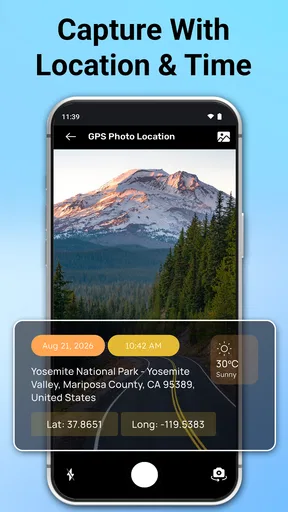
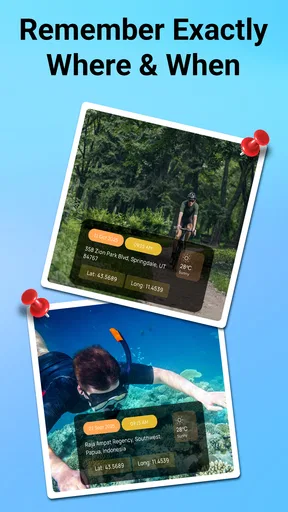
I find GPS Camera with Time Stamp useful for a very specific job: making a photo carry a visible reminder of where and when it was taken. Rather than relying on my memory or digging through a photo’s details later, I can capture a scene with location, date, and time displayed on the image. That can help with site visits, travel notes, property records, or simply sorting pictures from a busy day. It is a practical tool, not a replacement for a full camera app or a photo organizer.
GPS Camera is a free Android tools app from Wanda Gallery Studio, and its central appeal is easy to understand: take a picture, then use the stamped details as context when you revisit it. The app is rated for Everyone and has an average rating of 3.5 from around six thousand ratings. Those figures suggest a widely tried app with mixed experiences, so I would approach it as a handy utility whose results depend on the phone, location conditions, and the way you use it—not as a guaranteed record-keeping system.
Making a dependable photo record
I treat a dependable photo record as a small routine, not just a stamped image: I frame the subject, capture enough surrounding context, and check the result while I’m still there. That makes it easier to spot a misleading location or an unreadable overlay before the moment has passed. The next section looks at the few setup choices and phone conditions I’d check before turning that routine into a habit.
Start with a simple capture routine
The most useful way to begin is to decide what the stamp needs to prove or remind you of. For a travel snapshot, a location and time marker may be enough. For documenting a repair or checking the progress of a room renovation, consistency matters more: photograph from roughly the same viewpoint, include a recognizable reference in the frame, and make sure the stamp remains legible without covering the detail you care about.
I would first take a test picture somewhere familiar, then inspect the saved image rather than assuming the overlay will look right. Check that the location makes sense, the date and time are readable, and the stamp does not obscure a sign, label, crack, or other evidence. This small trial is especially worthwhile before a visit where you may only get one chance to photograph a site.
GPS accuracy is not equally reliable everywhere. Outdoors with a clear view of the sky, location information is generally more useful than inside a large building, underground, or among tall structures. If the location looks vague or unexpected, pause and try again when the phone has a better signal. A visible stamp can make a photo easier to interpret, but it cannot make an imprecise location precise.
For a routine such as documenting deliveries, I would take one broad image that establishes the setting, followed by closer pictures of the relevant item. That gives the timestamped context a useful role without asking one crowded frame to show everything. It also makes later review easier: the establishing shot answers “where was I?” while the closer images show the condition or detail that prompted the record.
Worth Reading Before You Choose

EA SPORTS FC Mobile 26 Is a Bigger Football Game, but It Takes Time

Flipboard Shows What News Apps Must Do Beyond the Feed

Switching to Android Auto Means Rethinking Your Driving Routine

Google Calendar Makes a Crowded Week Easier to Manage

Ludo King Makes the Most of the Minutes Between Plans

Baby Panda World Brings Quick Play to Modern Phones, but Its Game Library Feels Busy
Check the result before relying on it
A timestamp is most helpful when it supports a clear visual record. Before leaving a location, review the captured image and make sure the subject and the stamp are both visible. If the overlay dominates a small object, step back or change the composition. If it blends into a bright or busy background, adjust the framing so it lands over a quieter area when possible.
I would also separate documentary shots from pictures meant to look polished. A stamped image can be excellent for a maintenance log, but distracting in a family album or a carefully composed landscape. Keeping those purposes in mind prevents the overlay from becoming clutter. When I want an unmarked photo, the usual camera app is often the better choice; when I want a quick visual record, GPS Camera has a clearer purpose.
One practical habit is to take a clean reference photo with the phone’s regular camera when image quality or creative control matters, then use the stamped camera for the record that needs visible context. This avoids treating a utility camera as the best option for every shot. It also leaves you with a straightforward choice later: the plain photo for sharing or editing, and the marked version for recalling the visit.
Settings that deserve a quick look
Before a real task, I would check the app’s available stamp and camera options rather than assuming the default layout suits every scene. The goal is not to decorate the picture; it is to keep the information readable while preserving the important part of the frame. If the app offers choices for how the stamp appears, use a sample shot to judge them in the conditions you expect—bright daylight, a dim interior, or a background full of detail.
Location access is another practical point. A GPS-based stamp depends on the phone being able to determine a location, so check that location services are available and that the app can use them. If a first image lacks a useful position, do not treat it as a trustworthy location record. Try again after the phone has had a moment to settle, and compare the result with a place you can identify.
Date and time are only useful when the phone’s clock is set correctly. If you have recently changed time zones or adjusted the device clock, check it before taking a batch of records. This is an easy detail to overlook, particularly on a trip, and it can make a perfectly readable stamp misleading. For personal reference, a small discrepancy may not matter; for a work log, it can make the sequence harder to reconcile.
Think about framing before changing any settings. If the label keeps landing over the subject, a small shift in camera angle may solve the problem more cleanly than shrinking the text or accepting an unreadable result. Likewise, if several images need to be compared later, use a repeatable distance and viewpoint. The app can add time and place context, but a consistent photographic method is what makes a before-and-after set genuinely useful.
Build a faster habit for repeated visits
For recurring work, I would keep the process deliberately simple: open the app, take a wide context shot, capture the important details, and check one image before moving on. Repeating the same sequence reduces the chance of forgetting the establishing view or leaving without confirming that the stamp appeared as expected. It also makes a folder of images easier to scan later because each visit follows a familiar pattern.
A useful example is checking a rented property between tenants. I would photograph each room from a consistent doorway position, then take closer images of any wear or repair needed. The location stamp supplies context, while matching viewpoints make changes easier to compare. The app does not replace written notes about a defect or a proper inspection report, but it can make the photos more informative than a loose collection of unlabeled pictures.
Another good use is travel journaling when I do not want to write down every stop. A visible place and time can help distinguish similar-looking streets or landmarks when I sort images later. For a shared album, though, I would think carefully before distributing location-marked pictures: a stamp can reveal more about where a photo was made than the image alone. If that is not appropriate, keep the record private or use an unmarked camera image for sharing.
On a site with poor reception, an experienced user should avoid rushing through a whole batch and assuming every frame has a dependable location. Capture a test image, inspect it, and make a note of any uncertainty while the visit is still fresh. That workflow is less convenient than blindly shooting, but it is a sensible trade-off when accuracy matters. A stamped image is a memory aid and a record, not independent proof that every displayed detail is correct.
Where the app fits—and where it does not
Compared with a regular phone camera, GPS Camera is more direct when I want location and time visible on the image itself. A standard camera may store location as photo metadata when configured to do so, but that information is not immediately visible when someone views the picture outside a photo library. The visible overlay is convenient for quick reference, while metadata can be less intrusive and better for images intended to remain clean.
That difference matters. A stamped photo is easy to understand at a glance, but the overlay becomes part of the image and may be inconvenient if you later want to crop, edit, or share it without those details. If preserving an untouched original is important, keep a separate plain capture or use a camera workflow that stores location information without printing it across the picture. For evidence-sensitive documentation, follow the record-keeping process required by your workplace rather than relying on a phone app alone.
This is also not the right tool for every kind of photography. If I care most about manual exposure, creative controls, fast action, or a polished final image, I would choose a camera app designed around those priorities. If I only need to organize images by place, a photo library’s map or metadata view may be tidier. GPS Camera is at its best when the visible stamp itself is useful—not simply because the word “GPS” sounds reassuring.
There is a human-factor limitation too: a large or poorly placed overlay can distract from the subject, and repeated stamps can make a collection feel noisy. For a maintenance log or travel reference, that trade-off is often worthwhile. For portraits, social posts, or images that need a clean composition, it is usually not. I would decide that before capturing a full set, because an overlay baked into a picture is not as flexible as information kept separately.
What to expect from the current app
The current version is 4.8.0, and the app requires Android 8.0 or later. It has more than five million installs, which shows that this kind of quick location-marked photography has a substantial audience, though popularity alone does not guarantee a perfect fit for your phone. Since the average rating is 3.5, I would pay attention to the actual test image on my own device rather than assuming every camera and location setup will behave identically.
Installation is free, which makes a short trial an easy way to judge whether the workflow suits you. I would test it in the environments where I expect to use it: outside, inside, and in any recurring work setting. Look at the stamp’s readability and the saved image, not just the live preview. That tells you whether the app is a useful shortcut for your routine or whether the regular camera plus a separate note-taking habit is more dependable.
The app is a reasonable match for people who repeatedly need a quick visual record with place and time visible: property managers, travelers, field workers, or anyone tracking a project over several visits. It is less appealing if you rarely need stamped context, dislike text on photos, or want one camera app to handle both polished photography and documentation equally well. Those are not flaws so much as clear boundaries around its purpose.
A practical verdict for people who repeat the task
I would recommend GPS Camera with Time Stamp to someone who often revisits photos and asks, “Where was this, and when did I take it?” Its strongest point is the straightforward link between a captured image and visible context. The best results come from a repeatable routine: check the phone’s clock and location access, take a sample, frame the subject with room for the overlay, and review the saved picture before relying on a batch.
For a one-off snapshot, the extra stamp may add more clutter than value. For a series of site checks, repairs, or travel stops, that same detail can save time and prevent mix-ups. I would keep a plain-camera option for photos meant to be edited or shared widely, and treat GPS Camera as a focused record-making tool. Used with those expectations, it can earn a place in a practical toolkit without pretending to replace careful notes, a dedicated camera, or sound documentation habits.
Overall, my recommendation is conditional but positive: try it if visible location and timing solve a real problem in your photo routine. Its value is less about taking a better-looking picture and more about making a useful picture easier to understand later. That distinction is what helps me decide when to open it—and when another camera is the smarter choice.
Pros
- Adds GPS coordinates
- date
- and time directly to photos.
- Useful for documenting site visits
- deliveries
- and field work.
- Can display an address or location details on the photo.
- Provides a quick way to capture location-tagged evidence.
- Straightforward concept that suits occasional
- practical use.
Cons
- Location accuracy depends on GPS signal and device settings.
- Photos may reveal sensitive location data when shared.
- Stamp styles and placement may offer limited customization.
- Requires location permission to add GPS details.
- A visible stamp can distract from the photo or obscure details.
FAQs for GPS Camera with Time Stamp
What is GPS Camera with Time Stamp used for?
GPS Camera with Time Stamp is designed to take photos that include details such as the date, time, and location of capture. Depending on the app’s available settings and your device permissions, the image may also show coordinates, an address, or other camera and location information. It can be useful for travel records, site visits, fieldwork, or documenting events, but check the preview and settings to see exactly which details will appear on your photos.
Does GPS Camera with Time Stamp require an internet connection?
The camera can generally take photos without mobile data or Wi-Fi, but location details may be less accurate or unavailable when your device cannot determine its position. GPS reception, device settings, and permission to access location all affect whether coordinates or an address can be added. An internet connection may help resolve a readable address, while satellite-based positioning can work without one. Confirm the location shown in the preview before relying on a photo as a record.
What permissions does the app need, and is my location private?
A timestamp camera typically needs camera access to take photos and location access to add GPS information. It may also request photo or storage access so images can be saved to your device. Location details embedded in or printed on a photo can reveal where it was taken, especially if you share the image publicly. Review the app’s permission prompts and privacy information, and disable location stamping or remove identifying details when you do not want them included.
Can I customize the timestamp and GPS information shown on photos?
Many GPS timestamp camera apps offer options for changing the stamp’s format or appearance, such as choosing which date, time, or location details are displayed and adjusting their position or style. The exact controls vary by app version and device, so inspect the settings before taking important pictures. Some information may be printed directly onto the image, making it difficult to remove later; save an unstamped original if you may need a clean copy.
Is GPS Camera with Time Stamp free, and what should I check before downloading?
The price, advertising, and availability of optional paid features can differ by platform, region, and app version. Before downloading, check the current Google Play or App Store listing for the developer, recent update date, device compatibility, in-app purchases, and user reviews. Also confirm that the app’s camera and location features suit your needs. If accurate records matter, test a few photos first and compare the displayed timestamp and location with your device’s information.


